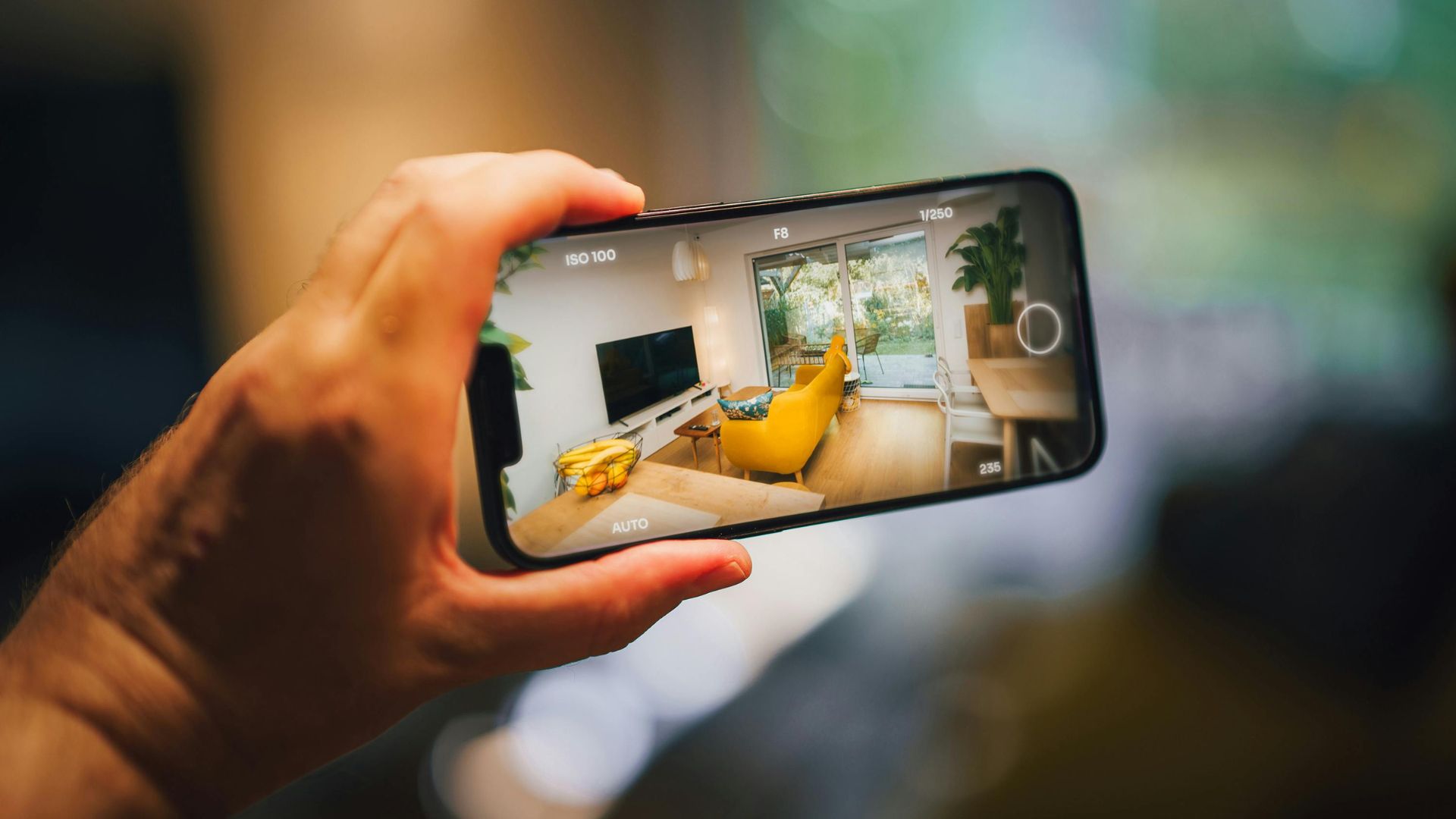
I spent my first year of smartphone photography exclusively using auto mode, wondering why my pictures never looked as good as what I saw on Instagram. Then one rainy afternoon, I accidentally opened the manual camera settings while trying to zoom. Those sliders and numbers looked intimidating, but curiosity made me start experimenting. Within an hour, I was taking photos that actually looked intentional rather than lucky accidents.
Understanding the best camera settings for mobile photography transforms your phone from a point-and-shoot device into a tool you actually control. Auto mode makes guesses about what you want. Manual settings let you decide. The difference shows immediately in your photos, especially in challenging lighting situations where auto mode struggles and produces muddy, unclear results—something even the best tech gadgets can’t fix without proper settings.
The truth is, your phone’s camera hardware is probably more capable than you realize. The limiting factor isn’t the lens or sensor. It’s relying on automatic settings that prioritize speed over quality, making compromises you never asked for. Learning to adjust settings manually takes your photography from “good enough for social media” to “wait, you took this on a phone?”
Understanding Your Mobile Camera’s Basic Settings
Before diving into specific scenarios, you need to understand what each setting actually controls and how they work together.
ISO: Light Sensitivity
ISO determines how sensitive your camera sensor is to light. Lower ISO values, like 100 or 20,0, produce cleaner images with less grain but need more light. Higher ISO value, such as 800 or 160,0, captures images in darker conditions but add visible noise and grain.
The reality: Modern phone sensors handle noise better than older cameras, but physics still limits what’s possible. You’ll notice grain creeping into photos around ISO 400-800, becoming obvious above ISO 1600.
When I learned this, I was photographing my cat in dim indoor lighting at ISO 3200. The photo was bright enough, but looked terribly grainy. Dropping to ISO 800 and holding my phone steadier for the longer exposure produced a much cleaner image.
Shutter Speed: Exposure Time
Shutter speed controls how long the sensor collects light. Faster speeds like 1/500 second freeze motion, but need bright light. Slower speeds like 1/30 second gather more light but risk blur from camera shake or subject movement.
The hand-holding rule: Most people can hold a phone steady for around 1/60 to 1/125 second. Slower than that, and you’ll likely get blurry unless you brace against something or use a tripod.
White Balance: Color Temperature
White balance ensures whites actually look white rather than orange or blue. It’s measured in Kelvin, with lower numbers (3000K) producing warmer orange tones and higher numbers (7000K) creating cooler blue tones.
Auto white balance works most of the time. But when you’re shooting mixed lighting or want creative control over mood, manual white balance makes the difference between photos that feel right and ones that look slightly off.
Exposure Compensation: Brightness Adjustment
This setting makes your image brighter or darker overall. Measured in stops, positive values (+1, +2) brighten the image while negative values (-1, 2 2 darken it. Think of it as overriding your phone’s automatic brightness decision.
Mobile Photography Camera Settings for Beginners: Starting Points
If you’re new to manual settings, these safe starting points work in typical conditions. Adjust from here based on your specific situation.
Daytime Outdoor Photos
ISO: 100-200 for maximum quality. Shutter Speed: 1/250 to 1/500 seconds to freeze motion. White Balance: Auto or Daylight preset (5500K) Exposure: Start at 0, adjust if sky is too bright or shadows too dark
The abundant natural light makes outdoor photography forgiving. Your main challenges are managing harsh shadows in midday sun and avoiding overexposed skies.
What works for me: I usually shoot at ISO 100 outdoors and let shutter speed vary based on available light. If I’m photographing moving subjects like people walking or pets running, I increase the shutter speed to 1/500 or faster.
Indoor Photography with Natural Light
ISO: 200-400 to balance quality and brightness. Shutter Speed: 1/60 to 1/125 second, brace if slower. White Balance: 4000-5000, K depending on window light..t Exposure: +0.3 to +0.7 to compensate for darker interiors
Window light creates beautiful soft light but can confuse auto modes, especially when the bright window appears in frame.
The trick I discovered: Position yourself so the window light hits your subject from the side rather than shooting directly into the window. This avoids silhouettes while creating dimensional lighting.
Evening Indoor with Artificial Light
ISO: 400-800, depending on available lightt.t Shutter Speed: 1/30 to 1/60 second (brace phone.) White Balance: 3000-4000K for warm tungsten bulbs, 4500-5500K for LED.Exposure: +0.3 to +1.0 to brighten dim rooms
Indoor artificial light is where auto mode really struggles. Different light sources create color casts that need correction.
Reality check: You’ll probably need to increase the ISO higher than you’d like. Accept some grain rather than getting blurry images from too-slow shutter speeds.
Best Camera Settings for Mobile Photography at Night
Night photography challenges phone cameras more than any other scenario. Limited light forces compromises between ISO noise, motion blur, and exposure brightness.
Night Cityscapes with Street Lights
ISO: 400-1600, depending on lilightinghutter Speed: 1/30 to 1/8 second with stabilization. White Balance: 3500-4500K for warm city light.ghts Exposure: -0.3 to 0 to prevent blown highlights from lights
Use night mode if available, but understand what it’s doing. Most night modes take multiple exposures and combine them, which creates brighter images but can blur moving subjects.
What surprised me: Shooting at slightly lower exposure compensation (-0.3 to -0.7) often produces better results than trying to brighten everything. Dark areas stay dark, but lights retain detail instead of becoming blown-out white blobs.
Astrophotography and Stars
ISO: 1600-3200 (accept the noise) Shutter Speed: 15-30 seconds (requires tripod or stable surface) White Balance: 4000-5000K for natural sky color Exposure: Varies based on moon phase and light pollution
Phone astrophotography won’t match dedicated cameras, but modern sensors can capture stars with proper settings and dark skies away from city lights.
Equipment reality: You absolutely need a tripod or stable surface. Phone tripod adapters cost $5-15 and make the difference between possible and impossible.
Best Camera Settings for Mobile Indoor Photography in Low Light
ISO: 800-1600 Shutter Speed: 1/15 to 1/30 second (use timer to avoid shake) White Balance: Match dominant light source Exposure: +0.5 to +1.0
The self-timer feature becomes crucial in low light. Tapping the shutter button creates tiny movements that blur the image. Setting a 2-second timer lets the phone stabilize after pressing the button.
Mobile Camera Settings Quick Reference Guide
| Scenario | ISO | Shutter Speed | White Balance | Exposure Comp | Key Tip |
| Bright Outdoors | 100-200 | 1/250-1/500 | 5500K | 0 to -0.3 | Avoid overexposed skies |
| Cloudy Day | 200-400 | 1/125-1/250 | 6000-6500K | +0.3 | Overcast adds a blue cast |
| Indoor Natural Light | 200-400 | 1/60-1/125 | 4500-5500K | +0.3 to +0.7 | Position near windows |
| Indoor Artificial | 400-800 | 1/30-1/60 | 3000-4500K | +0.5 to +1.0 | Brace phone or use a timer |
| Night Cityscape | 400-1600 | 1/30-1/8 | 3500-4500K | -0.3 to 0 | Use night mode if available |
| Astrophotography | 1600-3200 | 15-30 sec | 4000-5000K | Varies | Tripod absolutely required |
| Sunset/Golden Hour | 100-400 | 1/125-1/250 | 5000-5500K | -0.3 to 0 | Underexpose slightly for saturation |
| Action/Sports | 200-800 | 1/500-1/1000 | Auto | 0 | Prioritize fast shutter |
Best Camera Settings for Mobile Portraits
Portrait photography on phones benefits enormously from manual settings, especially when trying to blur backgrounds or control skin tones.
Portrait Mode Settings
ISO: 100-400 depending on light. Shutter Speed: 1/125 minimum to avoid blur from slight movement. White Balance: 5000-5500K for natural skin tones. Exposure: 0 to +0.3 to brighten faces slightly
Most phones have portrait mode for background blur, but you can enhance results by adjusting settings manually. Position your subject 4-6 feet away and ensure good lighting on their face.
What works: Natural window light from the side creates dimensional lighting that flatters faces. Avoid harsh overhead sun that creates unflattering shadows underthe the eyes and nose.
The mistake I made: Using too high exposure compensation, trying to brighten skin tones. This washed out highlights and made skin look flat. Slight underexposure with proper lighting produces better texture and dimension.
Getting Blurred Backgrounds Without Portrait Mode
The technique: Use maximum zoom, position the subject far from the background, and ensure bright lighting for low ISO.
Phone sensors have a limited ability to blur backgrounds naturally due to the small sensor size. But you can enhance blur by increasing the distance between the subject and background, using a telephoto lens if available, and ensuring sharp focus on your subject.
Best Manual Settings for Mobile Camera in Challenging Conditions
Bright Sunlight
Challenge: Harsh shadows and overexposed highlights. Settings: ISO 100, fast shutter (1/500+), slightly underexpose (-0.3 to -0.7). Technique: Position subjects in shade or use HDR mode
Midday sun creates the harshest lighting. Early morning or late afternoon provides softer, more flattering light.
What helped me: Instead of fighting harsh sunlight, I started shooting with the sun behind my subject and exposing for their face. This creates a bright halo effect that looks intentional rather than like a mistake.
Backlighting and Silhouettes
For detail in shadows: ISO 200-400, slower shutter, +1.0 to +2.0 exposure. For dramatic silhouettes: ISO 100-200, fast shutter, -1.0 to -2.0 exposure
Backlighting confuses auto mode terribly. Manual control lets you decide whether you want detailed subjects or dramatic silhouettes.
Moving Subjects and Action
ISO: As low as light allows (200-800) Shutter Speed: 1/500 minimum, 1/1000+ ideal Burst Mode: Essential for capturing peak moments
Fast shutter speeds freeze motion but need bright light or higher ISO. Accept some grain rather than motion blur when photographing action.
Sports and kids: Burst mode captures multiple frames per second. Take 20 shots and keep the one or two with perfect timing and expressions.
Mobile Camera Settings for Food Photography
Food photography requires making dishes look appealing and closely matching how they appear in person.
ISO: 200-400 for clean images. Shutter Speed: 1/60-1/125 (food doesn’t move) White Balance: 4500-5500K to keep food looking natural Exposure: 0 to +0.3 for bright, appealing presentation
Natural light near windows produces the most appealing food photos. Artificial restaurant lighting often adds yellow or green color casts that make food look unappetizing.
Shooting angle: Overhead shots work for flat dishes like pizza or salads. 45-degree angles better show dimension for burgers, cakes, and plated meals.
The improvement that surprised me: Adjusting white balance manually fixed the sickly yellow-green cast that restaurant lighting created. Food suddenly looked fresh and appetizing instead of like it had been sitting under heat lamps for hours.
Common Mistakes That Ruin Mobile Photos
Maxing Out ISO Instead of Adding Light
When photos are too dark, the instinctive response is to crank the ISO higher. But high ISO creates grainy, noisy images. Before pushing ISO above 1600, try moving to better light, opening curtains, or turning on additional lights.
Better approach: Use the lowest ISO your lighting allows. Add light to your scene rather than adding noise to your image.
Ignoring Shutter Speed and Getting Blur
ISO and exposure compensation get attention while shutter speed gets ignored. But too-slow shutter speeds cause blur that ruins otherwise good photos.
The rule: Keep shutter speed at least 1/60 second for static subjects, 1/125+ for people, 1/500+ for moving subjects unless you’re deliberately creating motion blur.
Setting White Balance Once and Forgetting It
White balance needs adjustment when lighting changes. That setting from outdoor midday sun won’t work for indoor evening lighting.
Quick check: If whites look orange, yellow, or blue, your white balance is wrong for the current lighting.
Over-Relying on HDR Mode
HDR combines multiple exposures to capture detail in both highlights and shadows. It works great for landscapes with bright skies and dark foreground. But it fails terribly with moving subjects, creating ghosting and blur.
When to avoid HDR: Moving subjects, high-contrast artistic shots, low light (makes grain worse), and any situation where you want deep shadows rather than revealing every detail.
Shooting Everything at 0 Exposure Compensation
Your phone’s automatic exposure tries to make everything medium brightness. Bright scenes get darkened. Dark scenes get brightened. This creates flat, mediocre images.
Manual override: Bright beach scenes need -0.3 to -0.7 to keep brightness. Dark, moody scenes need -0.5 to -1.0 to maintain atmosphere. Override the camera’s urge to make everything medium gray.
Not Testing Settings Before Important Shots
Weddings, once-in-a-lifetime travel moments, or important events aren’t times to experiment with settings you’ve never tested.
Preparation: Test your settings in similar lighting conditions before important shoots. Understand how your specific phone handles different ISO levels, how slow a shutter speed you can hand-hold, and which white balance values work for various light sources.
How to Adjust Camera Settings on Mobile for Better Quality
Different phone manufacturers hide manual controls in different places. Most modern Android phones include Pro or Manual mode. iPhones require third-party apps like Halide or ProCamera for full manual control.
Finding manual mode: Look for “Pro,” “Manual,” “Expert,” or similar labels in your camera app. These modes expose the sliders and settings that auto mode hides.
Third-party camera apps: Apps like Open Camera (Android) or Halide (iPhone) often provide better manual controls than stock camera apps. They’re worth the small learning curve.
Raw format shooting: If available, shooting in RAW format captures more image data, allowing extensive editing later. RAW files are large but preserve quality better than JPEGs when editing.
Developing Your Mobile Photography Style
The best camera settings for mobile photography aren’t universal. They depend on your subject, available light, creative vision, and your specific phone’s capabilities.
Experimentation process: Pick one scenario, like indoor portraits or sunset landscapes. Shoot the same subject with different settings, noting what you changed. Compare results to understand how each setting affects your specific phone.
Building intuition: Eventually, settings become instinctive. You look at a scene and immediately know you need ISO 400, 1/125 shutter, and slightly underexposed. That intuition comes from practice, not memorizing numbers.
The goal isn’t perfect technical execution. It’s taking photos that capture what you saw and felt, whether that’s sharp detail in bright light or grainy atmosphere in dim evening scenes. Manual settings give you the control to match your vision, and editing apps help you fine-tune the final look to bring that vision to life.
Start with one setting at a time. Master ISO before worrying about white balance precision. Understand shutter speed before diving into exposure compensation nuances. Each setting you understand expands your creative options.
Your phone camera is more capable than auto mode reveals. Taking control of settings unlocks that potential, transforming your mobile photography from acceptable snapshots to photos that make people ask what camera you used.
FAQ
What ISO setting should I use for mobile photography?
Use the lowest ISO your lighting allows for the leanest image quality. In bright outdoor conditions, shoot at ISO 100-200. Indoor natural light typically needs ISO 200-400. Artificial indoor lighting often requires ISO 400-800. Only push above ISO 800 when necessary for proper exposure, as grain becomes increasingly visible above this level. Modern phone sensors handle noise better than older cameras, but physics still limit low-light performance. Test your specific phone to understand where grain becomes unacceptable to you, as tolerance varies between models.
How do I get Da SLR effect on mobile camera settings?
True DSLR-like background blur requires larger sensors that phones lack, but you can enhance blur through technique and settings. Use portrait mode if available, combined with maximum zoom to compress perspective. Position your subject 4-6 feet from the camera and ensure a significant distance between the subject and background. Shoot in bright conditions, allowing low ISO 100-200 and fast shutter speeds around 1/125-1/250. Focus precisely on your subject’s eyes. The combination of distance, zoom, and proper focus creates more natural-looking background separation than portrait mode alone.
What are the best camera settings for mobile photography in low light?
Low light forces compromises between ISO noise, motion blur, and overall brightness. Start with ISO 800-1600 depending on available light. Use shutter speeds no slower than 1/30 second when hand-holding, or slower if using a tripod or stable surface. Enable your phone’s night mode, which combines multiple exposures for brighter, cleaner results. Increase exposure compensation by +0.5 to +1.0 to brighten the scene. Use the self-timer to avoid camera shake from pressing the shutter. Consider slightly underexposing and brightening during editing rather than pushing ISO too high.
Should I always shoot in manual mode on my phone?
Not necessarily. Auto mode works well in consistent, good lighting conditions like bright outdoor scenes or evenly-lit interiors. Use manual settings when auto mode struggles with challenging lighting like backlit subjects, night scenes, mixed color temperatures, or when you want specific creative effects like motion blur or deep shadows. Many photographers use auto mode for quick snapshots and switch to manual for intentional photography. The key is understanding when manual control improves results versus when auto mode is sufficient.
How do I avoid blurry photos when using slow shutter speeds?
Slow shutter speeds below 1/60 second require stabilization to avoid blur. Brace your phone against a wall, tree, or solid surface when shooting hand-held. Use your phone’s self-timer feature to eliminate shake from pressing the shutter button. Invest in a small phone tripod costing $10-20 for situations requiring very slow shutters, like night photography or low light. Hold your phone with both hands, elbows tucked against your body for additional stability. Take multiple shots to ensure at least one turns out sharp, as even tiny movements cause blur at slow speeds.