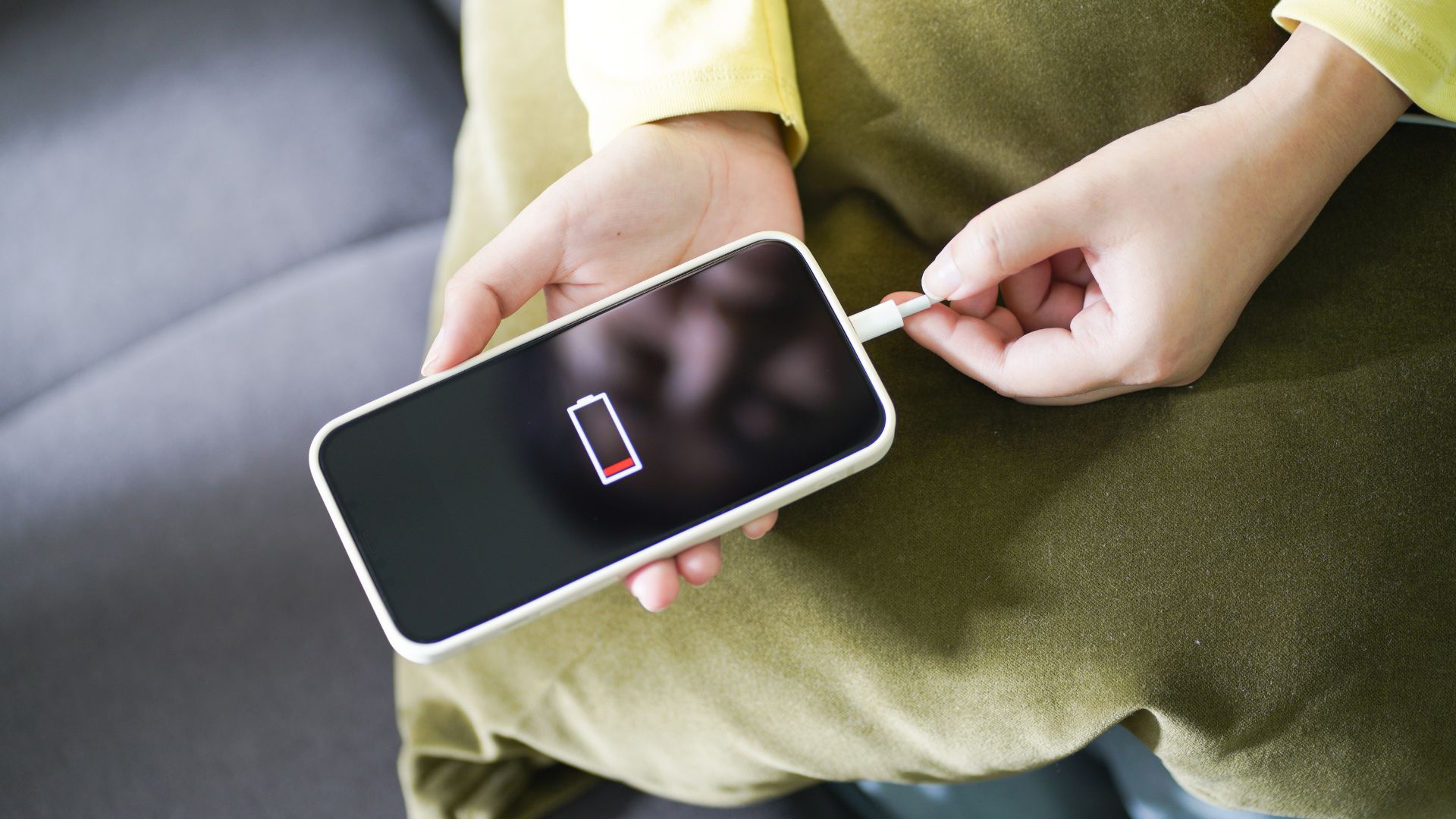
There’s this moment that happens to everyone with a smartphone. You’re out somewhere, maybe running errands or meeting friends, and you glance down to see your battery at 15%. That little surge of panic hits, especially when you know you won’t be near a charger for hours.
I’ve been there too many times to count. The frustration of watching your battery percentage drop while you’re actually using your phone for important things, not just mindlessly scrolling, makes you wonder what’s going wrong. Learning how to extend battery life on iPhone and Android isn’t about some magic trick. It’s about understanding what actually drains your battery and making small adjustments that add up.
The best ways to improve smartphone battery life in 2026 involve a mix of settings changes, habit adjustments, and knowing which features you can live without during your busiest days. Let’s dig into what actually works.
Why Your Phone Battery Drains So Fast
Before jumping into solutions, it helps to understand what’s happening. Modern smartphones pack incredible power into devices we carry everywhere, but that capability comes with energy costs.
The display remains the biggest battery consumer for most people. Every minute that screen stays lit, especially at high brightness, eats through your charge. Then there’s the processor working constantly in the background, managing apps, syncing data, and keeping everything running smoothly.
What surprised me when I started monitoring battery usage was how much certain apps consume even when I’m not actively using them. Social media apps particularly love refreshing content, checking for notifications, and tracking location. All of this happens silently while your phone sits in your pocket.
Network connections also drain batteries faster than you’d expect. Your phone constantly searches for the strongest signal, whether that’s cellular data, WiFi, or Bluetooth. In areas with weak coverage, your phone works overtime trying to maintain a connection, which explains why battery life often tanks when you’re traveling through rural areas.
Essential Settings to Change Right Now
Let’s start with the adjustments that make the most immediate difference. These are settings buried in your phone’s menus that most people never touch, yet they significantly impact how long your battery lasts.
Display Settings That Actually Matter
The best settings to extend battery life on iPhone start with your display. Drop your brightness to around 40-50% for indoor use. Your eyes adjust quickly, and you’ll barely notice the difference after a few minutes. For outdoor use, let auto-brightness handle it rather than keeping brightness maxed all the time.
Screen timeout matters more than most people realize. Setting your phone to lock after 30 seconds instead of 2 minutes means the display spends less time unnecessarily lit. Those extra 90 seconds add up over dozens of daily interactions.
Dark mode isn’t just aesthetic on phones with OLED screens. Since these displays turn off pixels completely to show black, dark interfaces genuinely save battery. On LCD screens, the benefit disappears, but it doesn’t hurt either.
Background App Management
This is where you’ll find some of the biggest battery hogs. Android battery saving tips for long-lasting performance always include reviewing which apps can run in the background.
On iPhone, go to Settings, then General, then Background App Refresh. You’ll see a list of every app that’s allowed to update content when you’re not using it. Do you really need your shopping apps, games, or news readers to refresh constantly? Probably not. Disable background refresh for everything except essential apps like messaging and email.
Android offers similar controls under Settings, then Apps, then individual app battery settings. You can restrict background activity for apps that don’t need constant updates. The slight delay when opening these apps is worth the battery savings.
I discovered this made a huge difference after tracking my battery usage for a week. Apps I opened maybe twice a day were consuming 15-20% of my battery just running in the background. Restricting them added nearly two hours of screen time to my daily usage.
Location Services Overhaul
Location tracking drains batteries aggressively because it uses GPS, cellular triangulation, and WiFi scanning simultaneously. Very few apps truly need your location all the time.
On both platforms, review location permissions app by app. Weather apps only need location while you’re using them, not constantly. Social media apps want permanent access to suggest local content, but you can switch them to “While Using” without losing functionality. Games rarely need location data at all.
The iPhone’s “Precise Location” toggle lets you give apps an approximate location rather than exact coordinates, which uses less power. For most apps, knowing you’re in a general area works fine without pinpoint accuracy.
Advanced Battery Optimization Techniques
Once you’ve handled the basics, these deeper strategies help squeeze even more life from your battery, especially on days when you know you’ll be away from chargers for extended periods.
Smart Use of Battery Saver Modes
Both iPhone’s Low Power Mode and Android’s Battery Saver dramatically extend battery life by reducing background activity, lowering performance slightly, and dimming displays. The key is knowing when to activate them.
How to use battery saver mode effectively on Android means not waiting until you’re at 20%. Enable it when you leave home at 100% on days where you know you’ll be out for 12+ hours. The performance reduction is barely noticeable for everyday tasks like messaging, browsing, and calls.
I tested this on a long day of travel. Enabling Low Power Mode at 85% instead of waiting until 15% meant my iPhone lasted 14 hours of moderate use instead of the usual 9-10 hours. The earlier activation makes a bigger cumulative difference than most people expect.
Managing Connectivity Features
WiFi, Bluetooth, and cellular data all consume power, but not equally. Surprisingly, WiFi typically uses less battery than cellular data because it requires less power to maintain a connection. When possible, stay connected to WiFi networks you trust.
Bluetooth’s battery impact has decreased significantly in recent years. Modern Bluetooth Low Energy uses minimal power, so keeping it enabled for headphones or smartwatches isn’t the battery killer it once was. However, if you’re not using Bluetooth devices, turning it off helps slightly.
Airplane mode becomes your friend in specific situations. In areas with no signal (like basements or rural areas), your phone wastes enormous amounts of battery searching for networks. Enabling airplane mode in zero-signal zones prevents this drain while still letting you use offline features.
Battery Life Optimization by Usage Pattern
Different people use their phones differently, which means battery optimization should adapt to your specific needs and habits.
For Heavy Social Media Users
Tips to stop social media apps from draining battery start with understanding how these apps operate. They’re designed to keep you engaged, which means constant content refreshing, autoplay videos, and notification checks.
Disable autoplay for videos in your social media app settings. Videos consume significantly more power than static images, and most autoplay content isn’t worth watching anyway. You can still watch videos by tapping them, but you avoid the battery drain of videos playing as you scroll past.
Reduce notification frequency. Do you need Instagram to alert you every time someone likes your photo? Probably not. Fewer notifications mean fewer times your screen lights up and fewer background processes checking for updates.
For Mobile Gamers
How to reduce battery drain while gaming on mobile requires accepting some trade-offs. Games are inherently battery-intensive because they push your processor and GPU while keeping the screen on continuously.
Lower graphics settings when possible. Most mobile games offer quality options, and medium settings still look fine while consuming 20-30% less power than ultra settings. Frame rate caps also help. If a game offers 60fps and 30fps options, choosing 30fps extends battery life noticeably during long gaming sessions.
Taking breaks between gaming sessions lets your phone cool down. Heat degrades battery health over time and makes your battery drain faster in the moment. A phone that’s warm to the touch is working inefficiently.
For Photographers and Content Creators
How to extend battery life for mobile photographers involves smart shooting habits. Camera apps drain batteries quickly because they power the display, run processing algorithms, and sometimes keep location services active.
Reduce the preview quality if your camera app allows it. You don’t need the highest resolution preview to frame shots. Save the processing power for the actual capture. Also, avoid excessive burst mode shooting unless necessary. Taking 20 photos per second taxes your processor and storage simultaneously.
For video recording, 1080p at 30fps uses considerably less battery than 4K at 60fps while still producing excellent results for most purposes. Reserve the highest settings for important footage rather than running them constantly.
Common Battery Mistakes That Hurt Your Phone
Understanding how to fix fast battery drain on iPhone and Android means avoiding practices that damage battery health over time or cause unnecessary drain.
Charging Habits That Damage Battery Lifespan
Here’s something that surprised me when I researched battery chemistry: keeping your phone at 100% charge constantly actually degrades the battery faster than partial charging cycles. Lithium-ion batteries prefer staying between 20-80% charge for optimal longevity.
Overnight charging isn’t ideal because your phone sits at 100% for hours. Both iOS and Android now include optimized charging features that learn your schedule and delay charging to 100% until shortly before you wake up. Enable these features in your battery settings.
Fast charging generates more heat than standard charging, which accelerates battery degradation. Using fast charging occasionally is fine, but defaulting to regular charging when you have time preserves battery health long-term. I keep a standard charger by my bed for overnight and save fast charging for emergencies.
Temperature Extremes Kill Batteries
Extreme cold and heat both harm battery performance and lifespan. Cold weather temporarily reduces battery capacity, which is why your phone drains faster on winter days. Heat causes permanent damage to battery chemistry.
Never leave your phone in direct sunlight or a hot car. Even 15 minutes in a hot environment can impact battery health. Similarly, trying to use your phone normally in freezing temperatures forces the battery to work harder. Keep your phone in an inside pocket during cold weather rather than exposing it directly to the cold.
Update Avoidance Backfires
How to fix battery drain after software update on iPhone and Android seems like a common problem, but skipping updates causes worse long-term issues. Initial battery drain after updates usually results from the phone reindexing data and optimizing the new software, which settles down after a day or two.
Outdated software often contains bugs that drain batteries inefficiently. Manufacturers regularly include battery optimization improvements in updates, so staying current actually helps battery life over time. I’ve noticed this pattern repeatedly: temporary drain immediately after updating, followed by better overall battery performance once the optimization completes.
Letting Apps Accumulate Unchecked
How to extend battery life without deleting apps is possible, but at some point, app bloat becomes a problem. Every installed app potentially runs background processes, receives notifications, and consumes resources even if you haven’t opened it in months.
Review your installed apps quarterly and remove ones you haven’t used recently. It’s tempting to keep apps “just in case,” but they still impact system performance and battery life. You can always reinstall them later if needed.
Practical Battery Life Improvements by Scenario
Here’s a realistic comparison of how different adjustments impact actual battery life throughout a typical day:
| Scenario | Baseline Battery Life | With Basic Optimizations | With Full Optimizations |
| Light Use (messaging, browsing) | 10-12 hours | 14-16 hours | 18-20 hours |
| Moderate Use (social media, photos, streaming) | 7-9 hours | 10-12 hours | 13-15 hours |
| Heavy Use (gaming, video recording, navigation) | 4-6 hours | 6-8 hours | 8-10 hours |
| Standby Time (minimal screen time) | 24-30 hours | 36-48 hours | 48-72 hours |
| Travel Days (inconsistent signal, photos, maps) | 5-7 hours | 8-10 hours | 11-13 hours |
These ranges account for modern smartphones with batteries between 3,500-5,000mAh capacity. Older phones or those with degraded batteries will see proportionally less improvement but similar percentage gains.
Tips to Make iPhone Battery Last All Day
iPhone-specific optimizations take advantage of iOS features designed for battery efficiency. Focus Mode, introduced in recent iOS versions, deserves more attention than it gets for battery savings.
Creating a Focus Mode for work or sleep that limits notifications and background activity reduces unnecessary battery drain during times when you’re less likely to be actively using your phone. The reduction in screen wake-ups and background processes adds meaningful battery life.
The iPhone’s battery health feature in Settings shows your maximum capacity compared to when the phone was new. Once battery health drops below 80%, consider whether battery replacement makes sense. Apple offers battery replacement services, and third-party options exist as well, though quality varies. These battery health principles apply not just to phones but also to laptops, where aging batteries can affect performance and daily usability.
Reducing motion and transparency in iOS accessibility settings also saves battery by decreasing the processing needed for visual effects. The interface looks slightly flatter, but the battery savings are measurable on older iPhones, especially.
Android Battery Optimization Strategies
Android battery optimization tips for Android users benefit from the platform’s flexibility and customization options. Different Android manufacturers implement battery features differently, but core concepts apply across devices.
Adaptive Battery learns which apps you use frequently and restricts background activity for apps you rarely open. This feature improves over time as it learns your usage patterns. Make sure it’s enabled in your battery settings.
Android’s Digital Wellbeing tools show detailed breakdowns of screen time and app usage. This data helps identify battery hogs you might not have noticed. An app you open for 2 minutes might run background processes, consuming battery for hours afterward.
Manufacturer-specific battery modes offer varying levels of restriction. Samsung’s Maximum Power Saving Mode, for example, dramatically limits functionality but can extend battery life to multiple days in emergencies. Understanding what features your specific Android device offers gives you more tools to work with.
Monitoring and Maintenance for Long-Term Battery Health
The best apps to monitor smartphone battery usage help you understand consumption patterns, though both iOS and Android now include decent built-in monitoring.
Check your battery usage statistics weekly. The pattern recognition helps you spot problems early. If an app suddenly starts consuming significantly more battery than usual, it might be misbehaving due to a bug or unwanted background activity.
Battery calibration is largely a myth with modern smartphones. You don’t need to discharge and charge your phone regularly. Lithium-ion batteries don’t have memory effects like older battery technologies. Just use your phone normally and charge when convenient.
How to improve battery life on old smartphones requires accepting that battery degradation is inevitable. After 2-3 years, most batteries lose 20-30% of their original capacity. At that point, all the optimization in the world won’t bring back what chemistry has taken away. Battery replacement or a new phone becomes the only real solution.
Making Smart Choices About Battery Usage
The goal isn’t to obsess over every percentage point but to develop sustainable habits that keep your phone functional throughout your day without constant charging anxiety.
Start with the easiest changes first. Adjusting brightness and reducing background app refresh takes minutes but delivers immediate results. Build from there based on your specific usage patterns and pain points.
Remember that battery life involves trade-offs. Every feature you disable or restrict saves battery but reduces functionality. Finding your personal balance between battery life and convenience is key. Some people happily sacrifice always-on displays and constant notifications for longer battery life. Others prefer keeping all features enabled and charging more frequently.
The techniques for how to extend battery life on iPhone and Android naturally work because they address real sources of battery drain rather than relying on placebo adjustments that don’t actually help. Focus on what makes measurable differences, and you’ll notice genuine improvements in how long your phone lasts between charges.
FAQ Section
Q: Does closing apps in the background save battery on iPhone and Android?
No, force-closing apps generally doesn’t save battery and might actually hurt it. Both iOS and Android manage background apps efficiently, keeping them in a suspended state that uses minimal resources. When you force-close apps and then reopen them, the startup process consumes more power than leaving them suspended. Only force-close apps that are clearly misbehaving or frozen.
Q: How much battery life should I expect from a new smartphone in 2026?
Most modern smartphones with moderate use should last 8-12 hours of screen-on time, translating to a full day of typical usage. Heavy users might need to charge once during the day, while light users can often go 1.5-2 days between charges. Battery life varies significantly based on usage patterns, display settings, and network conditions.
Q: Is it bad to charge my phone overnight every night?
Modern smartphones include protections against overcharging, so overnight charging won’t immediately damage your battery. However, keeping your phone at 100% for extended periods does accelerate long-term degradation. Using optimized charging features that delay reaching 100% until shortly before you wake up helps minimize this effect.
Q: Why does my battery drain faster after a software update?
Battery drain after updates typically happens because your phone is reindexing data, optimizing apps for the new software, and running background processes to complete the update. This usually settles down within 24-48 hours. If battery drain persists beyond a few days, try restarting your phone or checking for additional updates that might fix bugs.
Q: What’s the best way to extend battery life when traveling?
For travel days, enable battery saver mode early rather than waiting until low battery, download offline maps before losing WiFi to reduce GPS usage, disable automatic photo backup until you have WiFi, reduce screen brightness since you’ll likely be outdoors more, and use airplane mode in areas with no signal. These adjustments can extend battery life by 30-50% on travel days.