Starting your video editing journey feels like standing in front of a massive electronics store, staring at shelves of complicated software, wondering where on earth to begin. I remember downloading my first editing app and immediately feeling overwhelmed by the timeline, layers, and buttons that seemed to do nothing when I clicked them. If you’ve ever felt that frustration, you’re not alone.
The good news? Video editing apps have evolved dramatically. Today’s best free video editing apps for beginners 2026 are designed with people like us in mind: folks who want to create something cool without spending three weeks watching tutorials or emptying their wallets.
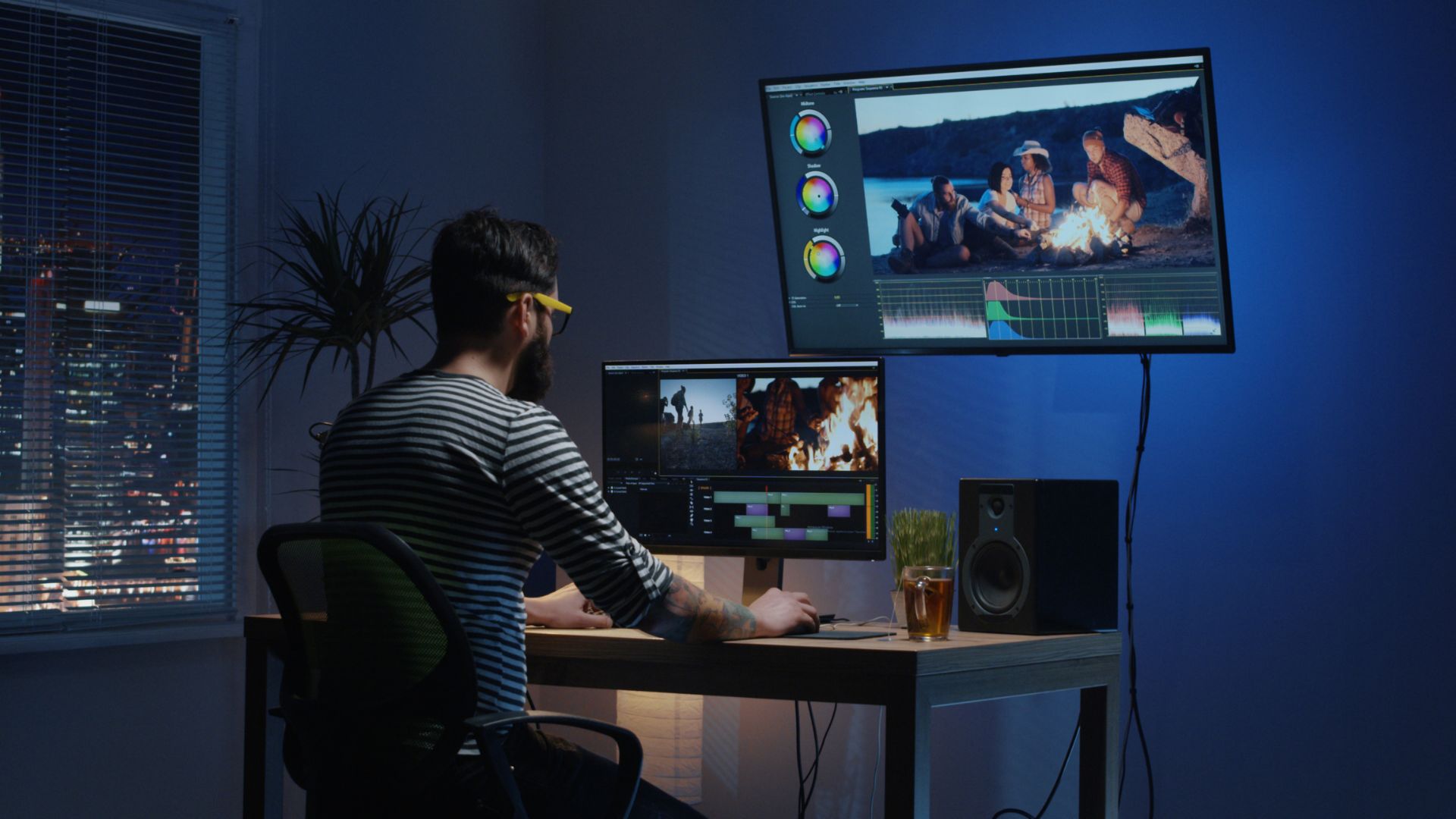
Whether you’re planning to start a YouTube channel, create TikTok content, or just make better home videos, this guide walks you through the easiest, most beginner-friendly options available right now.
What Makes a Great Video Editing App for Beginners?
Before diving into specific apps, let’s talk about what actually matters when you’re just starting.
Intuitive Interface: You shouldn’t need a manual to find the trim button. The best video editing apps with an easy interface put essential tools right where you’d expect them.
Templates and Presets: When you’re learning, templates are your best friend. They show you what’s possible and give you a starting point instead of a blank canvas that feels intimidating.
No Watermark Options: Nothing ruins a video faster than a giant logo slapped across your content. Many free video editing apps for beginners with no watermark exist, though some require you to watch an ad or share on social media.
Platform Compatibility: Whether you need beginner-friendly video editing apps for Android, iPhone, or a laptop matters. Some apps work brilliantly on mobile but feel clunky on desktop, or vice versa.
Learning Curve: The app should grow with you. Starting simple is great, but you don’t want to outgrow your editor in two weeks.
Best Free Video Editing Apps for Smartphone Beginners
CapCut: The Current Gold Standard
If you’ve spent any time on TikTok or Instagram Reels, you’ve probably seen videos edited with CapCut. It’s become the go-to choice for social media creators, and honestly, it deserves the hype.
The interface feels natural from the moment you open it. Drag your clips onto the timeline, tap to trim, pinch to zoom. It just makes sense. What really sets CapCut apart is its massive library of trendy transitions, effects, and music that’s already cleared for use. You’re not hunting through stock libraries or worrying about copyright strikes.
One moment that sold me on CapCut: I was editing a quick video at a coffee shop, trying to add text that bounced in sync with the music. In other apps, this would’ve taken me twenty minutes of fiddling. In CapCut, there was literally a “bounce to beat” option. Three taps, done.
The auto-captions feature is surprisingly accurate, too. It’s not perfect; you’ll catch the occasional weird transcription, but it saves massive amounts of time compared to typing everything manually.
Best for: TikTok creators, Instagram Reels, quick social media content, and anyone who wants trendy effects without effort.
InShot: Clean, Simple, Effective
InShot takes a more straightforward approach. The interface isn’t trying to be flashy; it just wants to help you edit videos quickly and get on with your day.
It excels at the basics: trimming clips, adjusting speed, adding music, and throwing in text overlays. The aspect ratio presets are particularly helpful when you’re creating content for multiple platforms. Switch from 16:9 for YouTube to 9:16 for Stories to 1:1 for feed posts with a single tap.
The free version does include a small watermark, but you can remove it by watching a short ad. It’s a fair trade-off that keeps the app genuinely free while giving the developers some revenue.
Best for: Simple edits, multi-platform creators who need different aspect ratios, and anyone who values straightforward functionality over fancy effects.
Adobe Premiere Rush: Desktop Power in Your Pocket
If you’re thinking about eventually graduating to professional software like Premiere Pro, Rush is your ideal starting point. It’s one of those video editing apps that feels beginner-friendly while still giving you a taste of professional workflows. Adobe designed it specifically for newcomers, but it still carries that polished, premium feel you usually find in high-end video editing apps.
The color correction features are far better than what most mobile video editing apps offer. Even simple adjustments look cleaner and more cinematic, making it a great option for anyone exploring video editing apps for the first time. The cross-platform syncing is another huge advantage—start editing on your phone during your commute and finish it on your laptop at home without jumping between different video editing apps.
The only drawback? The free version limits you to three exports. After that, you’ll need a subscription, which is a common model among many video editing apps today. Still, it’s worth trying if you’re serious about learning editing fundamentals and want hands-on experience with one of the smoothest video editing apps available.
If you’re comparing video editing apps to figure out where to begin, Rush gives you one of the most balanced starting points for beginners.
Best for: Aspiring professional editors, people who work across devices, and anyone who wants better color grading options.
Best Free Video Editing Apps for Beginners on a Laptop
DaVinci Resolve: The Hidden Gem
Here’s something surprising: one of the most powerful video editing programs in the world is completely free. DaVinci Resolve is used by Hollywood professionals, but the free version is fully functional for beginners.
I won’t sugarcoat it; there’s a learning curve. The interface looks intimidating at first, with multiple tabs and professional terminology. But if you’re willing to invest a few hours watching beginner tutorials, you’ll have skills that transfer to any editing software.
The color grading capabilities alone make it worth exploring. Even amateur adjustments look professional. The free version has no watermark, no time limits, and no feature restrictions that matter to beginners.
Best for: Serious learners, YouTube creators planning long-form content, and anyone on low-spec devices, surprisingly, as it’s well-optimized.
Shotcut: Open Source and Honest
Shotcut is one of those programs that doesn’t look particularly modern, but it gets the job done without any nonsense. It’s completely open source, which means it’s free forever with no hidden fees or surprise subscriptions.
The interface takes some getting used to. It’s functional rather than beautiful, which might feel dated compared to sleeker options. But once you understand where things are, it’s quite powerful for basic to intermediate editing.
It supports practically every video format imaginable, which is surprisingly rare in free software. No more “unsupported file format” errors when you’re trying to edit footage from your old camera.
Best for: Desktop users who want full control, people editing on older computers, and anyone who values open-source software.
Free Video Editing Apps for Specific Content Types
For YouTube Beginners: OpenShot
OpenShot hits a sweet spot for YouTube creators just starting. It’s simple enough that you won’t spend hours learning it, but powerful enough to create polished videos with multiple tracks, transitions, and titles.
The unlimited tracks feature is particularly useful for YouTube content where you might have background music, voiceover, B-roll, and main footage all layered together. Many beginner apps limit you to two or three tracks, which gets restrictive fast.
For Vlog Beginners: Quik (formerly GoPro Quik)
Originally designed for action camera footage, Quik has evolved into a surprisingly good vlogging tool. It automatically analyzes your footage and creates edits synced to music, which is perfect when you have hours of talking head footage and need to find the good moments.
The auto-edit feature isn’t perfect; you’ll want to tweak things. But it gives you a starting point instead of staring at 40 minutes of raw footage, wondering where to begin.
For Reels and Short Videos: VN Video Editor
VN focuses specifically on vertical video and short-form content. The editing style is optimized for quick, punchy cuts rather than long narrative pieces.
What stands out is the keyframe animation. You can make images zoom, pan, and move around the screen with surprising precision. It’s these little animated elements that make Reels feel dynamic rather than static.
Common Mistakes Beginners Make (And How to Avoid Them)
Overusing Transitions and Effects
Every beginner editor and every new content creator- discovers the transition menu and immediately wants to try every single option. I’ve been there. Spinning cubes, dissolves, page turns, star wipes… they’re fun to experiment with, but they make your videos look amateurish.
The professionals use hard cuts for 90% of their edits, with simple dissolves or fades for the rest. If you’re growing as a content creator, save the fancy transitions for specific moments where they actually enhance the story instead of distracting from it.
Ignoring Audio Quality
You can get away with mediocre video quality. People will watch slightly grainy footage if the content is good. But bad audio? That makes people click away immediately.
Most free editing apps include basic audio tools, but they don’t fix fundamental problems. If your original audio is full of background noise, no amount of editing will save it. Consider investing in a cheap external microphone before worrying about advanced editing techniques.
Not Editing to the Music
When you add music to your video, make sure you actually edit to the beat. Cuts, transitions, and text animations should sync with the rhythm. It’s the difference between a video that feels professional and one that feels random—even if you’re using a video generation AI tool to speed up parts of your workflow.
This takes practice. I still sometimes get lazy and slap music underneath without timing anything, whether I’m editing manually or testing a video generation AI tool for quicker drafts. But when you take the time to match your edits to the beat, the improvement is immediately noticeable, and even a video generation AI tool can’t replicate that human touch.
Exporting in the Wrong Format or Quality
You spent two hours editing, hit export, chose some random setting, and suddenly your file is either 5GB or looks like it was filmed on a potato from 2005.
Most apps have preset export options for YouTube, Instagram, TikTok, and other platforms. Use those. They’ve already figured out the optimal balance between quality and file size.
Tips for Learning Faster
Start with Phone Editing: Honestly, if you’re completely new, start with a mobile app like CapCut or InShot. You can edit while sitting on your couch, and the learning curve is much gentler. Graduate to desktop software when you feel limited by mobile options.
Watch One Tutorial at a Time: Don’t try to learn everything at once. Pick one specific skill (like adding text overlays or color correction), watch a five-minute tutorial, then practice it in your own project. Next week, learn something else.
Edit Videos You Actually Care About: Practice projects are boring. Edit videos of your pets, your weekend adventures, or whatever genuinely interests you. You’ll stay motivated and actually finish projects.
Study Videos You Love: When you see an effect or edit you like in someone else’s video, try to recreate it. Pause the video, study how they did it, then attempt the same thing. This is how you build your skills faster than any tutorial.
The Reality About Free Video Editing Apps
Let’s be honest about limitations. Free apps are amazing, but they have trade-offs. Some restrict video length. Others limit resolution. Many include watermarks unless you pay or watch ads. Cloud rendering might be slower than paid versions.
For most beginners, these limitations don’t actually matter. You’re learning, experimenting, and figuring out your style. You don’t need 8K export capabilities or advanced motion tracking yet.
Start free. Learn the fundamentals. If you eventually hit the ceiling of what free apps can do, that’s actually a good sign. It means you’ve developed real skills and you’re ready for professional tools.
Comparison Table: Best Free Video Editing Apps at a Glance
| App | Platform | Watermark | Best For | Learning Curve |
| CapCut | iOS, Android, Desktop | No | Social media, trending effects | Easy |
| InShot | iOS, Android | Removable (watch ad) | Quick edits, multi-platform | Easy |
| Adobe Premiere Rush | iOS, Android, Desktop | No (3 free exports) | Cross-device editing | Medium |
| DaVinci Resolve | Desktop | No | Professional-quality results | Hard |
| Shotcut | Desktop | No | Full control, all formats | Medium |
| OpenShot | Desktop | No | YouTube content | Easy-Medium |
| VN Video Editor | iOS, Android | No | Short-form vertical video | Easy |
Frequently Asked Questions
What is the best free video editing app for complete beginners?
CapCut is currently the best option for absolute beginners. It’s free, has no watermark, works on both phones and computers, and includes templates that teach you editing concepts while you create. The interface is intuitive enough that most people can start editing within minutes of downloading it.
Can I edit videos professionally using only free apps?
Yes, particularly with DaVinci Resolve, which is used for actual Hollywood productions. The free version has professional-grade color correction, audio editing, and effects. Many successful YouTube channels use only free editing software. Your storytelling and creativity matter far more than whether you paid for your editing app.
Are there good free video editing apps without watermarks?
Several excellent options exist: CapCut, DaVinci Resolve, Shotcut, OpenShot, and VN Video Editor all offer free versions without watermarks. InShot includes a removable watermark (watch a short ad), and Adobe Premiere Rush gives you three watermark-free exports before requiring a subscription.
Which free video editing app is best for creating YouTube videos on a laptop?
DaVinci Resolve or OpenShot are ideal for YouTube content on laptops. DaVinci offers professional capabilities with a steeper learning curve, while OpenShot provides a simpler interface with enough features for quality YouTube videos. Both are completely free with no watermarks or time restrictions.
What free video editing apps work well on older or low-spec devices?
Shotcut and OpenShot are surprisingly efficient on older hardware. On mobile devices, InShot runs smoothly even on budget smartphones. Avoid apps like Adobe Premiere Rush or DaVinci Resolve on older computers, as they require more processing power for their advanced features.